It does the whole job.
About a month ago, I was having trouble with my Mac and decided to head off any serious problems by reformatting my hard disk and reinstalling all my software from original program discs. In the old days, before we all had hard drives measured in gigabytes, I did this every single time there was a major system software update. Nowadays, it’s a lot of work and I avoid doing it if I can. My 24″ iMac is just over a year old and shouldn’t have been giving me problems, but I figured I’d try the reformat before bringing it to a genius. (Turns out, it was the swapping out of 2 GB of RAM for 4 GB of RAM that probably fixed the problem.)
For some reason, I didn’t do a typical install of Microsoft Office 2004. I thought I’d save disk space by omitting the proofing tools for the languages I don’t speak — which is every language except English. Word, which I use daily, worked fine — until I noticed that it wasn’t checking spelling as I type. Although my spelling is above average, I count on Word to put red squiggly underlines under my misspellings and typos. No matter what I did, I couldn’t get this feature to start working.
I sent an update to my Twitter account about this as I went about troubleshooting the problem. The result was an outpouring of suggestions from my Twitter friends for replacing Word or Office with other software, ranging from Open Source Word or Office replacements to Google Docs.
Whoa!
I fixed the problem by uninstalling and then reinstalling Word. Life went on. But it got me thinking about Office and Word and why so many people go out of their way to avoid both.
Word and Me
I should probably start off by saying that I have been using Microsoft Word since 1989 or 1990. Although I got Microsoft Works with my first Mac, I soon learned Word and began teaching it in a classroom setting. It was Word 4 for the Mac in those days; I don’t know what the corresponding version in Windows was because I didn’t use it or teach it. I’m not even sure if Microsoft Windows was a player back then.
I’ve used every version of Word for the Mac since then.
My first book about Microsoft Word was The Macintosh Bible Guide to Word 6. Word 6 sucked. It was a processor hog. I remember working with it in beta as I wrote my book about it. I remember whining to my editor, asking if he thought they’d fix the performance issues before the software went out. They did, but not very well. I disliked Word 6 and the way it handled outlines and “master documents.” Everything seemed to be “embedded.” It seemed as if they’d prettied up Word to look more Mac-like and had done the job by pouring maple syrup all over the inside of my computer, bogging things down.
Word 98 was a vast improvement. From then on, each version of Word was an improvement. The interface remained basically the same but features were added and solidified. Some of the features worked with Microsoft server software, which I didn’t have, didn’t want, and certainly didn’t need. All I cared about was that Word did what I needed it to do, using the same interface I knew from years of experience as a user.
The End of the World as We Know It: Office 2007
Then Office 2007 for Windows came out with its ridiculous “ribbon” interface. What the hell was Microsoft thinking? Take a standardized interface that your existing user base knows by heart and throw it out the window. Force them to learn a whole new interface. Keep telling them that it’s easier and maybe a handful of morons will believe you.
I had to use Office 2007 for two Excel books. The only good thing I can say about it is that the complete, radical interface change — I’m talking menus vs. ribbon here, not spreadsheet basics — made a book about the software necessary. How else would users figure out how to get the job done? Fortunately (for users, not authors) Office 2007 adoption is slow.
Woe is Me: Office 2008
 Of course, I’m a Mac user and use the Mac version of Office. I held my breath when Office 2008 came out. Thank heaven they didn’t get rid of the menu bar — although I don’t understand how they could. Office 2008 retains much of the Office 2004 interface. It just adds what Microsoft calls “Element Galleries” and the usual collection of features that 1% of the computing world cares about. Fortunately, you can ignore them and continue using Office applications with the same old menus and shortcut keys we all know.
I would have switched to Office 2008 — I even had it installed on my MacBook Pro — except for two things:
- Its default document formats are not compatible with versions of office prior to Office 2007. That means someone using Word 2003 for Windows or Word 2004 for Mac can’t open my documents unless I save them in an Office 2004-compatible format. This isn’t a huge deal, but it is something I’d have to remember every single time I saved a document. I’d also have to remember not to use any Office feature that only worked with Office 2007 or 2008.
- It does not support Visual Basic Macros. One of my publishers makes me use a manuscript template that’s chock-full of these macros. Can’t access the macros, can’t use the template. Can’t use the template, can’t use Office 2008.
(I wrote about these frustrations extensively in a Maria’s Guides article.)
So I’m apparently stuck with Office 2004 — at least for a while.
But do you know what? I’m perfectly happy with it.
Why I Like Word
I like Word. I really do. It does everything I need it to do and it does it well.
Sure, it has a bunch of default options that are set stupidly. I wrote about how to set them more intelligently in an article for Informit.com. (Read “Three Ways Word Can Drive You Crazy[er] and What You Can Do About Them.”) It certainly includes far more features than the average writer needs or uses. And despite what Microsoft might tell you, it’s probably not the best tool for page layout (I prefer InDesign) or mail merge (I prefer FileMaker Pro). But it does these things if you need to.
I use all of the basic word processing features. I use the spelling checker — both as I type and to correct errors. I like smart cut and paste, although I have the ridiculous Paste Options button turned off. I like AutoComplete and love AutoCorrect (when set up properly). I use all kinds of formatting, including paragraph and character styles, tables, and bulleted lists. I rely on the outlining features when preparing to write a book or script for video training material. I use the thesaurus occasionally when I can’t get my mind around the exact word I’m looking for, although the word I want is usually not listed.
I’ve used some of the advanced features, such as table of contents generation, indexing, and cross-references. These are great document automation features. Trouble is, I don’t usually use Word to create documents that require these features. I use InDesign for laying out my books, which are usually illustrated. (And I admit that I’m looking forward to trying out the new cross-referencing feature in InDesign CS4 for my next book.)
I don’t jump on board with every new Word feature. I prefer the Formatting toolbar over the Formatting Palette. I write in Normal view rather than Page Layout view. I create my own templates but don’t use the ones that come with Word.
I don’t use the grammar checker; I think it’s a piece of crap designed for people who know neither grammar nor writing style. I don’t like URLs formatted as links. (Who the hell wants links underlined in printed documents?) I don’t use any of the Web publishing features; I’d rather code raw HTML than trust Word to do it for me. I very seldom insert images or objects or anything other than text in my documents. I have InDesign for serious layout work. I don’t use wizards.  I think WordArt is ugly and amateurish. I keep the silly Office Assistant feature turned off.
I admit that I don’t use any of the project features that work with Entourage — although I’d like to. I decided a while back to switch to Apple’s e-mail, calendar, and contact management solutions (Mail, iCal, and Address Book respectively) because they’d synchronize with .Mac (now MobileMe) and my Treo. Entourage probably does this now, but I really don’t feel like switching again. Am still thinking about this.
The point is, I use a bunch of Word features and I completely ignore a bunch of others. The features are there if I need them but, in Word 2004, they’re not in your face, screaming for attention. (Wish I could say the same about Word 2008.)
iWork with Apple Computers
 Lots of people think that just because I’m a Macintosh user — an enthusiast, in fact — I should be using Apple’s business productivity solution: iWork. For a while, I thought so, too.
I own iWork ’08. I just bought iWork ’09. I’ve tried Pages. I’ve really tried Pages. I wanted to use it. I wanted to break free of Microsoft Word.
But old habits are hard to break. No matter how much I tried to use Pages each time I needed to create a document, when I was rushed, I reached for Word. No learning curve — I already know it. After a while, I just stopped trying to use Pages.
Why Use a Bunch of One Trick Ponies?
I know a bunch of writers who swear by one software program or another for meeting their writing needs. They use special outliners to create outlines. They use special “writing software” that covers the entire screen with a blank writing surface so they’re not distracted by other things on their desktops. They use special software to brainstorm, footnote, and index.
I’ve tried these solutions and do you know what? They don’t make my life easier. Instead, they just give me another piece of software to learn and keep up to date and interface with other software. They make more work for me.
I’m not going to forget my Word skills and Word isn’t going to suddenly disappear off the face of the planet anytime soon. In fact, it’s far more likely for one of these one-trick ponies to disappear than a powerhouse with millions of users worldwide like Microsoft Office.
 I remember ThoughtPattern, a program by Bananafish Software. I saw it demoed at a Macworld Expo in the early 1990s and thought it was the greatest thing in the world for organizing my thoughts and ideas. I was sure it would make me a better writer. I was so convinced, I bought it — and it wasn’t cheap. I used it for a while and rather liked it. Evidently, I was one of very few people who’d joined the ThoughtPattern revolution. In April 1993, it was discontinued. I was left with software that wouldn’t work with subsequent versions of the Macintosh system software. Worst of all, the documents I created with ThoughtPattern were in their own proprietary format. When the software stopped working, the contents of those documents were lost. (Do you think it was easy to find a screenshot from software that was discontinued 16 years ago?)
So perhaps you can understand my aversion to one-trick ponies that promise a better writing experience.
Will the same thing happen with Microsoft Word? I don’t think so.
I Don’t Compute in the Cloud
Google Docs was one of the solutions suggested to me by my Twitter friends. I guess they think it’s better to avoid the evil Microsoft empire in favor of the “we’re not evil” Google empire. Along the way, I should give up the interface and features I know from almost 20 years of experience with the software and rely on an online application that could change its interface daily. Oh, yeah — and keep my documents on someone else’s computer.
Yeah. Right. Good idea.
Not.
Until I’m part of a multinational corporation that requires its employees and consultants to keep all their documents on some remote server for collaboration purposes, I will not be computing in the cloud.
One of the things I like about keeping my documents on my own computer — rather than a remote server accessible by the Internet — is that the Internet is not always available. What do I do then? Stop working?
Security is an issue, too. While I don’t usually write much of a confidential nature, I don’t like the idea of not having control over my documents. Servers get hacked. I don’t want my work suddenly accessible to people who I don’t want seeing it.
I will admit that I use MobileMe’s iDisk feature to keep some documents on an Apple server. This makes it a tiny bit easier to access them from my laptop when I’m away from home. But I’ve recently moved to a new strategy. I bought a pocket hard drive that’s bigger than my computer’s Home folder. Before I hit the road with my laptop on a trip for business or pleasure, I sync this portable drive with my Home folder. I then have every single document on my computer with me when I’m away. The added benefit: complete offsite backup.
That’s My Case
That’s my defense of Microsoft Word. I rest my case.
Please understand that I’m not trying to convince a non-Word user to switch to Word. If you’re happy with something else, stick with it! That’s the precise reason I’m sticking with Word. I’m happy with it.
I guess the reason I wrote this post was to assure other people like me that there’s no reason to be ashamed of being a Word user. You do what’s right for you. There’s nothing really wrong with Word. If it makes your life easier, why switch?

 I shot this closeup photo of the cable for the old mine hoist at Monte Cristo Mine near Wickenburg, AZ.
 We also started getting roosters, hoping they’d work with the chickens to keep the flock going. We did have one hen get broody and hatch two chicks. She wasn’t a good mom. The other chickens soon killed the babies.
 I have a
  I bought the
 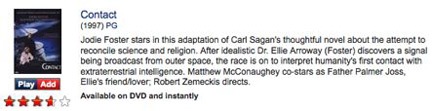 To add a movie to your Instant Queue, you must find a Netflix title that has both an Add and Play button. There are supposed 12,000 of these titles as I write this. One way to zip to the titles that can be viewed immediately is to click the Watch Instantly tab on the Netflix site. This displays only those titles you can watch online or via a Roku-like device.
 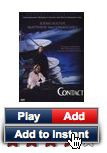 To add the title to your Instant Queue, point to the Play button and choose Add to Instant from the menu that appears. You can add a bunch at a time so Roku offers a good selection to choose from if you don’t have a computer handy when it’s time to watch.
 Of course, I’m a Mac user and use the Mac version of Office. I held my breath when Office 2008 came out. Thank heaven they didn’t get rid of the menu bar — although I don’t understand how they could. Office 2008 retains much of the Office 2004 interface. It just adds what Microsoft calls “Element Galleries” and the usual collection of features that 1% of the computing world cares about. Fortunately, you can ignore them and continue using Office applications with the same old menus and shortcut keys we all know.
 I think WordArt is ugly and amateurish. I keep the silly Office Assistant feature turned off.
 Lots of people think that just because I’m a Macintosh user — an enthusiast, in fact — I should be using Apple’s business productivity solution:
  I remember ThoughtPattern, a program by Bananafish Software. I saw it demoed at a Macworld Expo in the early 1990s and thought it was the greatest thing in the world for organizing my thoughts and ideas. I was sure it would make me a better writer. I was so convinced, I bought it — and it wasn’t cheap. I used it for a while and rather liked it. Evidently, I was one of very few people who’d joined the ThoughtPattern revolution. In April 1993, it was