
I get my author copies of WordPress 2: Visual QuickStart Guide — only about three weeks after they were expected.
When I got home from work yesterday, a case of books was waiting on my doorstep. That alone was kind of odd. Where I live in Wickenburg is quite a bit off the beaten path, down an unpaved, bumpy, steep, unmaintained road. The UPS and FedEx guys know where my office is. Since that’s a lot easier to get to — especially with a big truck — they normally deliver things there, even if the address on the box is my home address. In fact, the UPS guy came by the office yesterday to drop off an envelope for Mike — even thought it had our house address on it. And they dropped off the new ground handling wheels for my helicopter there, even though there was no one there to sign for the box. (The old UPS guy used to just throw packages into my Jeep if he saw it parked somewhere in town. I’d come out of the post office or supermarket and there would be a box on my passenger seat. Things are a little different here in Wickenburg.)
So I didn’t expect the books to arrive yesterday. Yet there they were. Horray!
 I opened the box to remove my “shelf copy.” I have a kind of weird superstition. I have a bookshelf with five shelves where I keep a single author copy of every book I’ve ever written, along with the translations I’ve been sent. Three shelves are completely full; this book will start the fourth shelf. The books are placed on the shelf in order of publication, with their translations placed to their right. The English-language book that goes on the shelf is always the first one I get. Normally, for Peachpit Press books, I get a single advance author copy directly from the printer when the book is done. That’s the book that goes on the shelf. The box of author copies that comes later goes into storage for giveaways, etc. For other publishers’ books, the book that goes on the shelf is the first one I pull out of the box.
I usually refer to my author copies (on the shelf) when I’m writing a revision or if a reader has a question (submitted to the Q & A system on this Web site, please). The book will come off its place on the shelf, spend some time on my desk, and be returned to its place when I’m done with it. The other day, I pulled out my very first book’s author copy just to scan the cover of it for a blog entry. I don’t lend out author copies — people are terrible about returning books. To me, for some reason, it’s important that the book be placed on the shelf in its proper place.
Anyway, I need to confirm what Miraz’s first impression was when she saw the book for the first time: it’s shiny. Sometime last year, Peachpit redesigned the covers for books in the Visual QuickStart Guide series. I think they just wanted to freshen them up. The design is similar, as the two illustrations in this entry show, but the new design is also coated with something that makes it very shiny.
 My QuickBooks 2006 for Macintosh: Visual QuickStart Guide, which was published last fall, was probably the very last book Peachpit published with the old cover style. I recall seeing other VQS titles on Peachpit’s Web site and talking to my editor about the new design. But this is my first book with the new design. I like it. It’s a little “cleaner” looking — whatever that means. Maybe more modern. The color scheme always changed from one book to the next, so that’s not the difference. It’s the extra white on the cover, I think. And less text in all those boxes. It looks good. And shiny.
Anyway, I’m glad the books have arrived and anxious to put the shelf copy onto the shelf.
Now let me update this site to show the right cover on the WordPress book support pages.
 My editor had told me that the book would be at the show and I’d do a book signing. I made my way to the Brady Publishing booth. And there, on the shelf, was the ugliest book cover I’d ever seen — with my name on it!
 Yes, it’s the side of a building. But it’s also an old billboard for a drugstore that probably doesn’t even exist anymore. And there’s something about it that I really like.
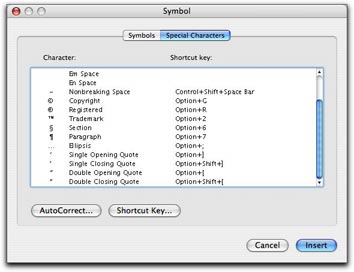 In Word, you can also use the Special Characters pane of the Symbols dialog. Choose Insert > Symbol to display the dialog and click the Special Characters tab or button. Scroll down to find the character you want (they’re listed at the bottom of the list) and double-click the one you want to insert it. This is a rather cumbersome way to get the job done, but it does work.
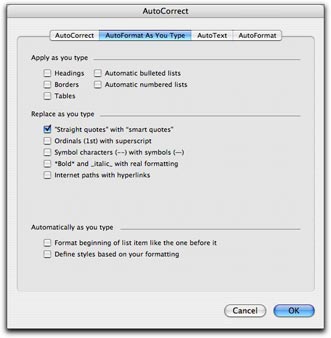 Fortunately, Word offers a better, automated way. You can set an option in the AutoFormat as you Type pane of the AutoCorrect dialog that will automatically convert every straight quote you type to the corresponding smart quote. Choose Tools > AutoCorrect and click the AutoFormat as You Type tab or button in the dialog that appears. Then turn on the “Straight quotes” with “Smart quotes” check box. (As you can see, that’s the only feature I have enabled in this pane on my copy of Word; I don’t like Word messing with the formatting of what I type, as I discuss in “
 First double check to make sure that the “Straight quotes” to “Smart quotes” feature is enabled as discussed above. Then choose Edit > Replace to display the Find and Replace window. Type the same plain old double quote character in the Find What and Replace With boxes. Then click Replace All. Word will replace the dumb double quotes with the correct smart quotes and tell you how many it replaced. Click OK to dismiss the confirmation dialog. Then type the same plain old single quote character in the Find What and Replace with boxes and click Replace All. Word replaces all the dumb single quotes with smart single quotes. Click OK to dismiss the confirmation dialog and close the Find and Replace window.