
It’s included in the Track Progress service, so why not?
 I’ve been using a SPOT Personal Tracker for the past two years. It was recommended to me by a helicopter pilot friend. We both fly in remote areas — the kinds of places that if you go down, rescuers are probably not going to find you before it’s too late.
Think I’m kidding? Check out this Cessna, which was not located for 31 months. I was just one of dozens of local area pilots who looked for this plane whenever I was in the area where it disappeared.
And what pilot can forget the disappearance of Steve Fawcett? Millions of dollars and lots of high-tech search techniques were used to try to find his plane. Over a year passed before a hiker found Fawcett’s ID and the wreckage was eventually found.
I didn’t want to end up like either one of these unfortunate flights. Even if I suffered a fatal crash, I wanted to be found as soon as possible. And if I simply went down and needed help, I wanted help to be able to find me without relying on cell phone signals.
The SPOT Service
So I bought a SPOT Personal Tracker and subscribed to two services:
- Basic Service enables the SOS (AKA 911), Help, and Check-in/OK features of the unit. That requires a button push to send the message. This service costs $100/year and is required to use the device.
- Track Progress drops “breadcrumbs” of your location every 10 minutes so others can track you. The track progress feature automatically plots your location signals on a map that’s accessible online. You can create a shared page, give the URL to whoever you want, and let them track you. The benefit of this — as far as I’m concerned as a pilot — is that if I go down suddenly and am incapacitated, people tracking me will not only know where I was within the previous 10 minutes of my mishap, but they’ll likely know which way I was going. Plus, if the unit is intact, it will continue to broadcast my location every 10 minutes. This non-moving signal should help them pinpoint my location — even if I’m dead. This extra service costs $50/year. While I have another pilot friend with a SPOT who doesn’t use it, I think every pilot who uses this device should cough up the extra dough for this service. You can’t always press a button when you need help.
I need to stress here that this is not a device designed for aviation. It’s really designed for “adventure activities” or travel — for hikers and campers and mountain climbers and kayakers. For folks who get out in the wilderness. Of course, pilots who fly in remote areas can benefit from the device and there are plenty of stories of how it may have saved aviator lives. Just keep in mind that it is not an approved FAA tracking device and that flight plans should always be filed and opened for remote area flights. And, if you’re an airplane pilot who flies at altitudes where FSS Flight Following is possible, why not use that service? Unfortunately, Flight Following is not usually available at the altitudes at which I fly my helicopter.
Creating a Shared Page
Of course, having a SPOT Personal Tracker with the Track Progress feature means a Share Page (example shown below) is included with your subscription fee. It makes sense to set up this page and share it’s URL with the folks who need to know where you are. You can also share it with the world at large if you’re like me and don’t care who knows where you are when you’re on the go.

Some recent activity; I did 20-minute helicopter rides the other day.
Setting up a SPOT shared page is easy. Assuming you’ve already set up your account on the SPOT Web site and have activated your device, just follow these steps:
- Sign into you account at FindMeSpot.com.
 Click the Share tab near the top of the page.
- Under SPOT Shared Pages, click the Create Shared Page link.
 Set the options in the Create Shared Page window that appears. Be sure to enter a Shared Page Name and select your SPOT device. Under Security, you can specify whether the page is Public or requires a Password to access. Personally, I recommend keeping it Public. You can always limit who you give the URL to. It would be terrible if someone needed to access the information and couldn’t remember the password.
- Select one of the options at the bottom of the page to determine how you’ll notify the people you want to share the page with about the page’s URL:
- If you select Send the shared page myself option (recommended), a message appears, telling you that anyone with the link can view your shared page. Click Create Now to complete the process.
- If you select Have SPOT send the shared page, a form appears for you to enter up to 50 e-mail addresses and create a custom e-mail message. Be sure to keep the Send a copy to you check box turned on so you get the URL, too. Click Send Now to complete the process.
 At the bottom of the page, a very long URL should appear. Triple-click it to select it and chose Edit > Copy (or press Command-C (Mac) or Control-C (Win)) to copy it to the clipboard. We’ll use it in a moment to test the link and create a short URL.
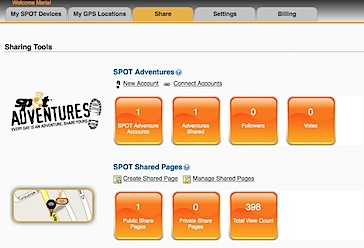 Click the Share tab near the top of the page.
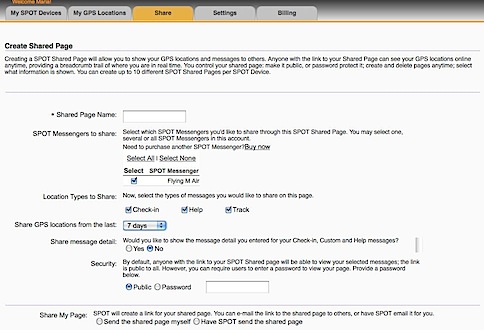 Set the options in the Create Shared Page window that appears. Be sure to enter a Shared Page Name and select your SPOT device. Under Security, you can specify whether the page is Public or requires a Password to access. Personally, I recommend keeping it Public. You can always limit who you give the URL to. It would be terrible if someone needed to access the information and couldn’t remember the password.
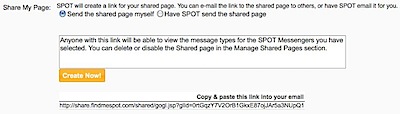 At the bottom of the page, a very long URL should appear. Triple-click it to select it and chose Edit > Copy (or press Command-C (Mac) or Control-C (Win)) to copy it to the clipboard. We’ll use it in a moment to test the link and create a short URL.
 If, for some reason, you didn’t get the URL or you need to access it again in the future, click the Shared tab (shown above) and then click the Manage Shared Pages link under SPOT Shared pages. You can click the name of the shared page to display it. You can then copy the link for that page from the Web browser’s address bar.
Creating a Short URL
http://share.findmespot.com/shared/faces/viewspots.jsp?glId=0aISLWHRq9KlETLqzcfFGQuD8VboS6R8O is not exactly the kind of URL that’s easy to share with friends. Fortunately, URL shortening services enable you to create a custom URL for any page. Although this step isn’t required, it’s certainly recommended.
Although I originally created my short URL with the TinyURL service, you can use any service you like. Bit.ly makes even shorter URLs, but it requires an account to create a customized one. So in this example, I’ll use TinyURL again.
- Point your browser to TinyURL.com.
 Paste the URL for your shared page in the top text box.
- Enter a short word or phrase that’s easy to remember in the bottom text box. In this example, I’ve entered the N-number for my helicopter. My original URL used FindMaria.
 Click Make TinyURL!
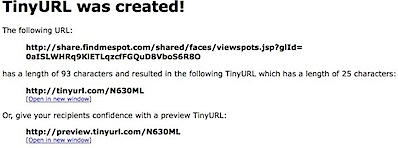
A message like the one shown here appears, confirming that the new URL was created. You can now give this much shorter URL to family and friends.
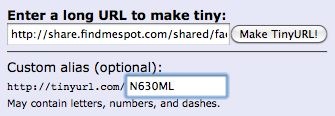 Paste the URL for your shared page in the top text box.
 Click Make TinyURL!
Share Your SPOT Page!
Are you already using a SPOT device? If you’ve got a page set up, share it here. Use the Comments link or form for this post. No need to enter any HTML tags; just enter the complete URL. Once your comment has been approved, your shared page will appear. I’d also love to hear comments about the device — good or bad.
 The image shown here shows the four days of my flight. Day 1 was
  Last week, while I was away in Ventura, CA, recording a revision to my Twitter course for
 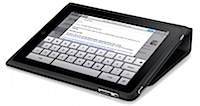 Apple Case. Frankly, I can’t understand why so many third party vendors are creating and selling cases for this device. The plain black case Apple offers (at a whopping $49) is excellent. It provides the protection you need for your iPad investment without making a slim, portable device unnecessarily bulky. And since the cover can be used to prop up the iPad at an angle in landscape view, it does double duty. Now that I’ve slipped my iPad into it, I can’t imagine the need for anything else.
 Kindle vs. iBooks. I think Apple missed the boat on this one. The Kindle app (see screenshot) has iBooks beat. Why? Because the Kindle app is available for iPad, iPhone, BlackBerry, Mac OS, Windows, etc. iBooks is available on iPad. So I go to Amazon.com and I buy a book. That book is automatically available on all of my registered devices. My bookmarks and last page read are automatically synchronized among them. So I can read a book in bed on my iPad and then, the next day, when I’m stuck waiting in line at the Motor Vehicle office, I can whip out my BlackBerry and continue reading where I left off. Theoretically, I can also register my husband’s Windows laptop so he can read my books, too. The only thing that would make this better is the ability to loan books to other Amazon.com account holders like Barnes and Noble’s Nook. (By the way, I named my iPad “Not Nook” because I cancelled my Nook order in January, expecting to buy an iPad instead. B&N dropped the ball when they couldn’t fulfill orders in a timely manner. Not having a problem doing that anymore, I bet.)
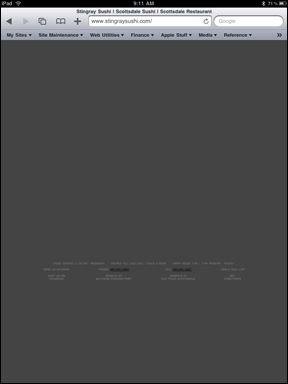 Flash. Okay, so the iPad doesn’t support Flash. I don’t care very much because I hate Flash. I hate the way it’s overused on the Web, I hate the way it takes so damn long to load on the shitty slow Internet connection in my Wickenburg office, I hate the way when it finally loads that it wastes time and bandwidth with idiotic content. Take, for example, the crappy design of
 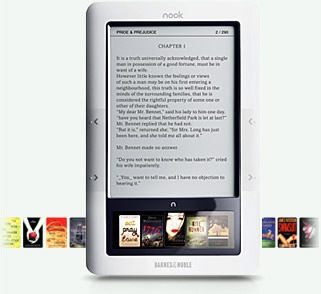 Then Barnes and Noble introduced its Nook. Or at least it announced it. It seemed more in line with what I was looking for in size, cost (for the unit and books), features, and flexibility. I visited B&N stores regularly to get my hands on one and give it a try. No joy there. Even after November 30, when the units were supposed to be available for purchase, I could not seem to find one. And I certainly wasn’t going to buy one until I either read a lot of reviews about it or had some quality time with a demo unit. I did see a few reviews and they were, for the most part, positive. But I still wasn’t prepared to buy one until I could walk away from the store with it.