Low Rotor RPM Warning System, Illustrated

A video to go with an earlier blog post.

I’ve written at least twice in this blog about the low rotor RPM warning system on Robinson helicopter:

I thought it might be good to illustrate what it looks and sounds like on video. You can find the video at the bottom of this post.

Before you watch the video, please read this explanation. The video is not narrated; I wanted the helicopter sound to be heard. If you don’t read this, you won’t know what’s going on or why.

  1. At first the helicopter is at cool-down RPM (around 65%). I’d just come in from a flight and was getting ready to shut down when I decided to use my Flip camera to make the video.
  2. I wind up the RPM by twisting the throttle. Watch the tachometer in the upper right corner. Needles are matched for engine (E) and rotor (R) RPM.
  3. When RPM gets to about 80%, the R44’s electronic governor takes over and brings it up to 100-102% engine RPM (the green arc).
  4. I simulate a low rotor RPM situation to test the system. (The system is required to function for flight so I test before every flight.) This requires me to raise the collective about an inch and then slowly roll off the throttle to reduce RPM. You can hear the engine pitch change and see the needles start to droop.
  5. At 97% RPM, the warning system engages with an audible horn and a light. A pilot who misses this would have to be blind and deaf (and thus, would not be good as a pilot).
  6. In the test, I push the collective down to shut the horn off and let the governor roll the throttle back up. If the horn came on in flight, you’d use the low rotor RPM recovery procedure, as discussed in “Reacting to Low Rotor RPM,” to regain RPM before it dropped to the point where it was not recoverable and became catastrophic.

Here’s the video:

The system looks and works slightly differently on different helicopter models. But the basic operation and test is the same.

A Serious Amateur’s Guide to Making Movies – Introduction

Making decent videos is more than just pointing and shooting.

I’ll start with a true story.

Flip VideoA friend of mine who also writes computer books bought a Flip video camera a few years back when they were still pretty new. If you’re not familiar with Flip, it’s a very small, point-and-shoot video camera that captures an hour of medium resolution — good enough for Web, anyway — video. (Newer versions are “HD” and capture 2 hours.) She went out with this camera, shot a bunch of video clips, strung them together in a “movie” using the Flip software, and published them to the Web. She then tweeted proudly about her achievement and invited friends to view it.

I viewed it. It was terrible. The video was shaky. The clips were long, pointless, and boring. The ambient sound — which was the only sound — included wind noise and off-camera voices and sounds. In all honesty, I didn’t waste my time with the ten minutes it ran. There wasn’t any reason to watch it. It didn’t show or tell me anything that interested me in the least bit.

That was a valuable lesson for me. If you’re going to share video, don’t share crap video.

Documentary Videography

I’ve been wanting to get involved in the documentary filmmaking process for some time now. I didn’t really want to make the video myself. I was always more interested in getting a gig as a writer or researcher for a professional production, to apply my existing skills in a new way and learn about the process as I worked with an experienced team. Unfortunately, I have no connections in that industry and I’m not ready for a career change (yet). So I decided to give it a try myself.

My biggest challenges are time and software know-how. After a false (and expensive) start with a video production company that took lots of my money and delivered only headaches, I decided to stop screwing around. You know what they say: if you want something done right, do it yourself.

Just because I want to do it right doesn’t mean I could immediately do so. There are a number of steep learning curves to climb along the way. I’ve been climbing them over the past few months. A few weeks ago, I managed to release a pretty darn good rough cut of a 5-minute documentary about the cherry harvest process. Over the following few days, I finished it up by adding title screens, a music soundtrack, and end credits. If you haven’t seen it and are curious, you can find it in an earlier blog post, as well as on YouTube.

The Series

This morning, I thought I’d start a new series of articles that documents what I’ve learned so far about making “pretty darn good” videos. This will help me remember what I did and learned as well as provide a general guide for other amateurs who want to create watchable video. Throughout this series, I’ll use my cherry harvest video as an example, so you might want to watch it just to get a better idea of what I’m talking about when I refer to it.

One thing I won’t cover in this series: recommendations on cameras or details on how to use the software I used to create the movies.

I don’t know anything about any camera other than the one I worked with. In all honesty, you should be able to do a good job with something as simple as a Flip or any consumer video camera model. Even an older one! As long as you can get the video into your computer, you’re good to go.

The software really doesn’t matter, as long as it has decent editing tools. (I use a Mac and Final Cut Pro, but iMovie should be fine on a Mac and I’m sure there are good, affordable video editing packages for Windows, too.) What’s more important than software is your ability to capture good video and put it together in a “story.” You’ll see what I mean as I go through each part in this series.

I’ll post links to each part of this series in this introductory post as I write them. Stay tuned.

October 21, 2011 Update: The series of articles I wrote for about this topic has been converted into a book. You can learn more here.

Interlacing Woes

One part of my current troubleshooting effort.

I’m trying very hard to create an SD DVD based on original 1080i HD footage. I have the latest version of Final Cut Studio, which should have all the tools I need to get the job done. But when I build a DVD, it looks like crap on my HD TV. Other standard DVDs look fine — actually, great — on that TV. For the past two days, I’ve been banging my head against the wall, trying to figure out the problem. Not having a standard TV handy for testing purposes, I have no idea what it looks like on one of those.

I hate learning by trial and error. I watched Lynda.com video courses about Final Cut Pro and DVD Studio Pro and they helped me build my movie and DVD. But they failed to explain how to get my kind of video (1920x1080i60 AVCHD) into standard DVD format. Do I convert video before bringing into FCP? If so what do I convert it to? How about interlacing? Downsizing? What compression schemes? What settings? And what about the anamorphic setting? Does that still apply with current technology?

To make matters worse, answers in forums tend to be vague. They’ll recommend a compression scheme, but when you go to the menu of options, what they mentioned doesn’t appear exactly as they referred to it. Instead, there are four or ten or twelve options it could be. Other times, when you make changes they recommend, the appearance of the video changes drastically; for example, turning on the anamorphic check box in FCP sequence settings squishes the picture, making everyone look short and fat. Do I need to change the shape of the pixels, too?

And what about the contradictions? One guys says do A while another guy says do B, which is completely different.

What I need is a recipe, a starting point, a list of steps that should work. Then, like a chef, I can fine-tune the recipe to see if I can make it any better.

Right now, the challenge is focusing around interlacing. Interlacing is one method of scanning video; progressive is the other. My camera shoots interlaced video. There’s no progressive option. TVs supposedly can de-interlace on the fly; I don’t know if modern HD TVs can, though. Computers can’t. The result is a kind of flicker anywhere there’s motion. Like in a video clip of a cherry orchard filled with trees that have leaves that flutter in the wind. Ugh.

One source says I must de-interlace before the video is downsized to SD for DVD. Another source, supposedly an “expert,” says de-interlacing “doesn’t work.” (WTF does that mean?) How do I know what’s right?

I decided to give it a try. FCP has a de-interlace filter. It took a while to figure out how to use it. FCP’s documentation doesn’t discuss all of its settings, making it just a little bit more challenging to figure out. I wound up running the filter once on the sequence and then again on the same sequence to see if there was any improvement. Here’s a series of three screenshots of a full-sized clip on my iMac monitor:

This is the “before” shot. You can clearly see the interlacing in the picker’s hat:
Interlaced

This is the first “after” shot. In this example, I’ve run the de-interlace filter on the video to remove interlacing. There’s an immediate improvement.
Deinterlaced

This is the second “after” shot. In this example, I ran the de-interlace filter twice. The first time was to remove interlacing (as above) and the second was for “max” flicker removal.
Deinterlaced and Deflickered

I don’t see a difference between the second and third screenshots — do you? I’m assuming the difference would be in motion. But I can’t view both videos at the same time; my computer chokes on the task. (Remember, they’re both 1920×1080 pixels.

And, stepping back to look at the big picture, I’m not even sure I’m supposed to de-interlace this video as part of my workflow. This could be a big waste of time!

If you have experience with this and can advise me, please do. Use the comments link. Also let me know if you know of any good, recent online resources to help me understand HD to SD conversion, interlacing, and anamorphic settings. Reading “how-to” information written 5+ years ago doesn’t help much, given the changes in technology and software capabilities since then.

Two More Video Camera Accessories

One for sound, one for video.

HandyCam.jpgAbout a year and a half ago, I bought a Sony HDR-CX12 Handycam. It’s a mid-range consumer model that shoots in full 1080i HD. I bought it to fill in the gaps of the video needed to finish up a video project and, since then, have been using it on and off to shoot stock video footage. The quality of the video is amazing for such a compact and relatively inexpensive device. These days, you can get something even smaller and less costly that does the same thing.

I shot all of Cherries: From Tree to Truck with this camera. Once you get past the inconvenience inherent with the AVCHD format and have the right tools to edit, it’s really a pleasure to work with. One feature that few people talk about is the ability to archive the 4GB Memory Stick PRO Duo cards to DVDs. You can later mount up a DVD and import media into your computer, just as if you’d attached the camera or inserted a card into a card reader.

Last year I started a project that required me to do some interviews. I used a friend as a guinea pig (so to speak), interviewing him outdoors in front of his helicopter, using my camera on a tripod and a wireless microphone clipped onto his shirt. The result was disaster. The sound was gawdawful, rendering the “talking head” video completely worthless. Clearly, I needed a better sound solution.

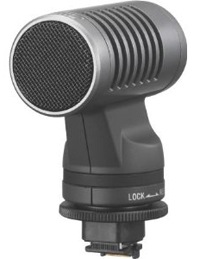
Sony ECM-HST1Of course, the camera is a consumer model and is extremely limited in compatible accessories. But today I poked around on the Sony Web site and tracked down a stereo microphone that might do the job — if I keep the camera out of the wind. It’s a Sony ECM-HST1 microphone, which fits into the camera’s hot shoe and draws power directly from the camera. It’s not what I really wanted — I wanted a lapel mic — but it’ll have to do.

Opteka OPT-SC37FEWhile I was surfing around for the best price, I stumbled upon this little gem: the Opteka OPT-SC37FE Ultra Fisheye Lens for Digital Video Camcorders. I already have a wide-angle lens for my camcorder, but there’s nothing like a very wide angle lens to get interesting effects or get up close and personal with your subject matter. The video clip on Opteka’s Web site certainly makes it look like a useful and fun accessory. Since I owed myself a birthday present anyway, I sprung for that, too.

What’s all this for? Well, in addition to finally getting to the big project I started nearly two years ago, I have a smaller, related project in mind. Both of these tools will help me capture the video I need to do it.

At least that’s what I keep telling myself. We’ll see.

Cherries: From Tree to Truck

A mini-documentary.

I need to start off by saying that I didn’t do a mini-documentary about the cherry harvest process because I felt the world had a need for such information. I did it as an exercise, as practice using my video camera and Final Cut Pro. I wanted to see if I had the ability to put together a documentary. This 5-minute video is the result.

This was my second summer experiencing the harvest process at one of the orchards I dry. The Schroeders are great people, friendly and a pleasure to work with. I dried their orchard four times this year. Being present for part of the harvest gave me an opportunity to see whether the work I’d done made a difference. It did.

The Schroeders were kind enough to let me walk the orchard and packing shed area with my Sony Handycam for a total of about 8 hours over two days. I also stopped in around sunset one evening to take some of the establishing shots with the soft “golden hour” light. They and their workers explained the process to me. I shot a total of about an hour of video footage. That that was barely enough. I still wish I’d gotten better shots of some parts of the process.

I found the cherry harvest fascinating — and I think you might, too. We’re all spoiled — we go into the supermarket in the summertime and find cherries waiting in the produce section, already bagged and ready to take home. But how many of us consider how the cherries get from the tree to the supermarket? It’s a complex process that requires hundreds of people and specialized equipment. This video shows part of the story, following the cherries from the trees in one orchard as they’re picked, gathered, chilled, and packed into a refrigerator truck. Take a moment to see for yourself:

Done? Not bad for a first serious effort.

From this point, the cherries go to the processing plant in Wenatchee, WA. They’re run through more cold water and lots of custom equipment before they’re picked through by several lines of people who toss out the bad ones. Then they’re sorted by size, run through more clean water, and eventually bagged and boxed up by even more people for shipment. I was fortunate enough to get a tour of that facility (and five more pounds of fresh cherries) a few days after I shot the video for this one. I may do a video of that facility and its process next year.

The amazing part of all this: the cherries are normally ready to ship to stores the same day they are picked.

More amazing stuff: the cherries I saw at the packing facility were headed for Korea and would be there within 18 hours of my tour. Whoa.

The point of all this is that there’s a lot that goes into getting fresh food into stores. Cherries are unlike many fruits — they have a very short shelf life. With proper care, they might last a week. That’s why everything is rushed and why so much effort is put into keeping them cool as soon as they’re picked.

I hope you enjoyed this. Comments are welcome.